
Here is how to install indicators in MT4: open MetaTrader 4, go to File > Open Data Folder, open MQL4 > Indicators, and copy the .mq4 or .ex4 file there. Then right-click Indicators in the Navigator and choose Refresh (or restart MT4) and drag the indicator onto a chart.
That is the whole process for most files. The rest of this guide covers the details that trip people up: the difference between .mq4 and .ex4 files, where the data folder really is, how to set inputs, when DLL imports matter, how to install templates, what changes in MT5, and a troubleshooting table for indicators that refuse to show up.
Before You Start: .mq4 vs .ex4 Files
MT4 custom indicators come in two file types:
- .mq4 is the source code. You can open it in MetaEditor, read how it works, and change it. MT4 compiles a .mq4 file into an .ex4 file when the terminal starts or when you refresh the Indicators list in the Navigator.
- .ex4 is the compiled file that MT4 actually runs. It cannot be edited or read as code.
Either file works on its own. If you have both, put both in the same folder. If a download arrives as a .zip file, extract it first. MT4 does not read files inside a zip archive, and a zipped indicator will never appear in the Navigator.
Every indicator on this site ships as a free download with the file, a readme and install notes. You can browse the full list on the free MT4 indicators page or grab ten source-checked tools at once in the free MT4 indicator pack.
How to Install Indicators in MT4, Step by Step
- Open MetaTrader 4 and log in to any account. A demo account is fine for testing.
- Open the data folder. Click File > Open Data Folder. A file browser window opens at the folder this copy of MT4 uses for its files.
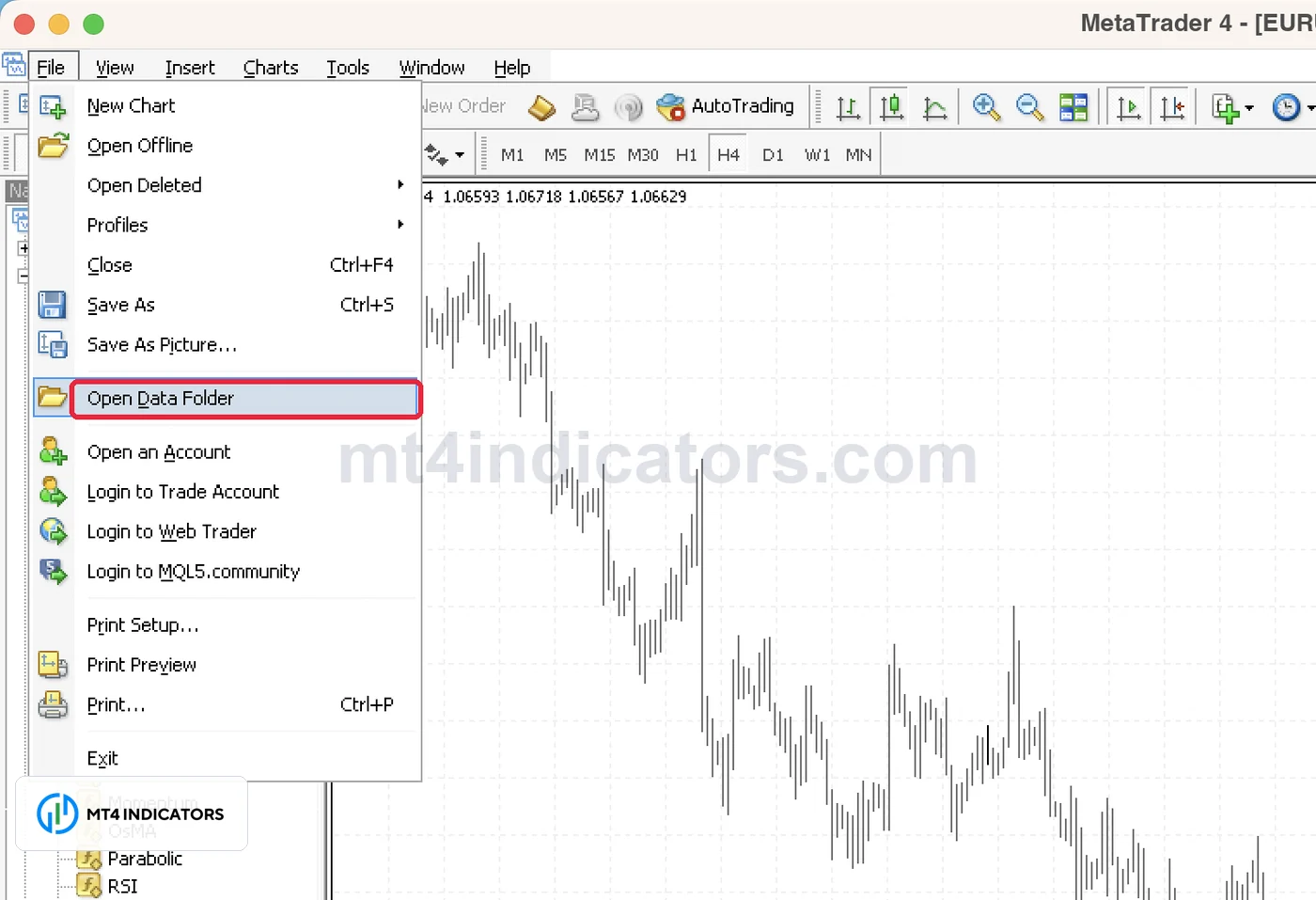
Click File > Open Data Folder in MetaTrader 4. - Open MQL4, then Indicators. This is the only folder MT4 checks for custom indicators. Expert Advisors go in MQL4 > Experts and scripts go in MQL4 > Scripts, so do not mix them up.
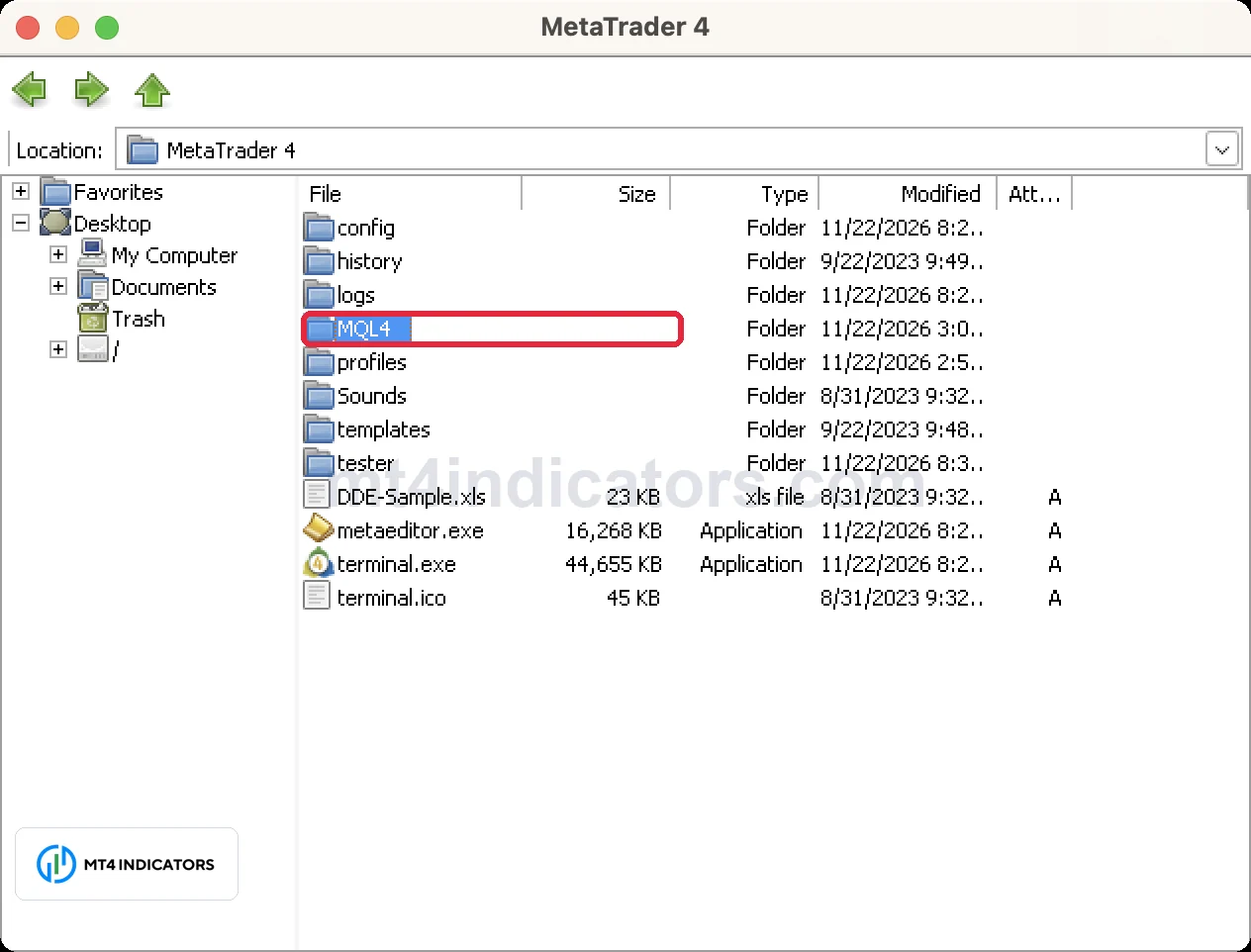
The data folder opens. Double-click MQL4… 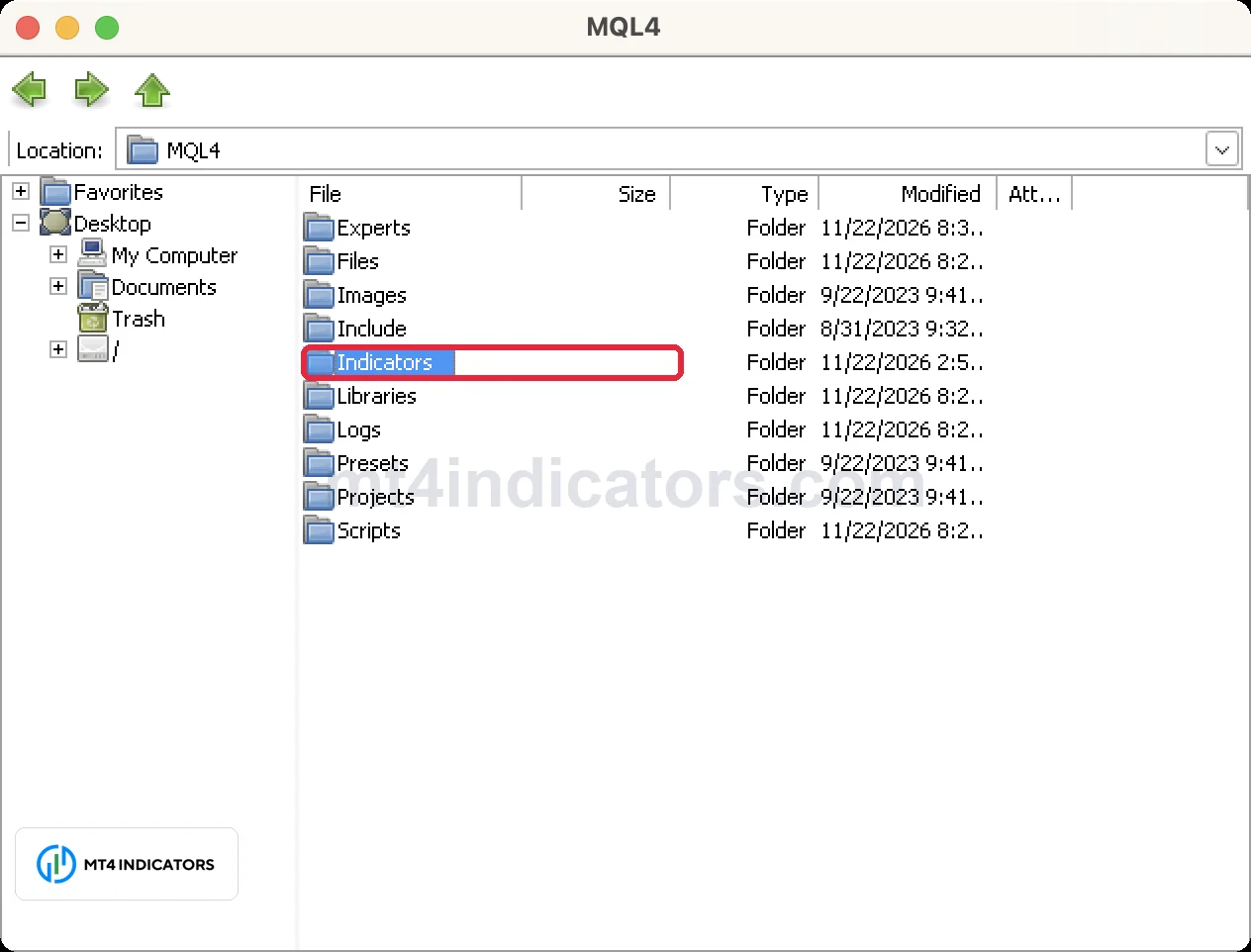
…then open the Indicators folder. - Copy the indicator file (.mq4, .ex4 or both) into MQL4 > Indicators. If the download included a second indicator file that the main one depends on, copy that too.
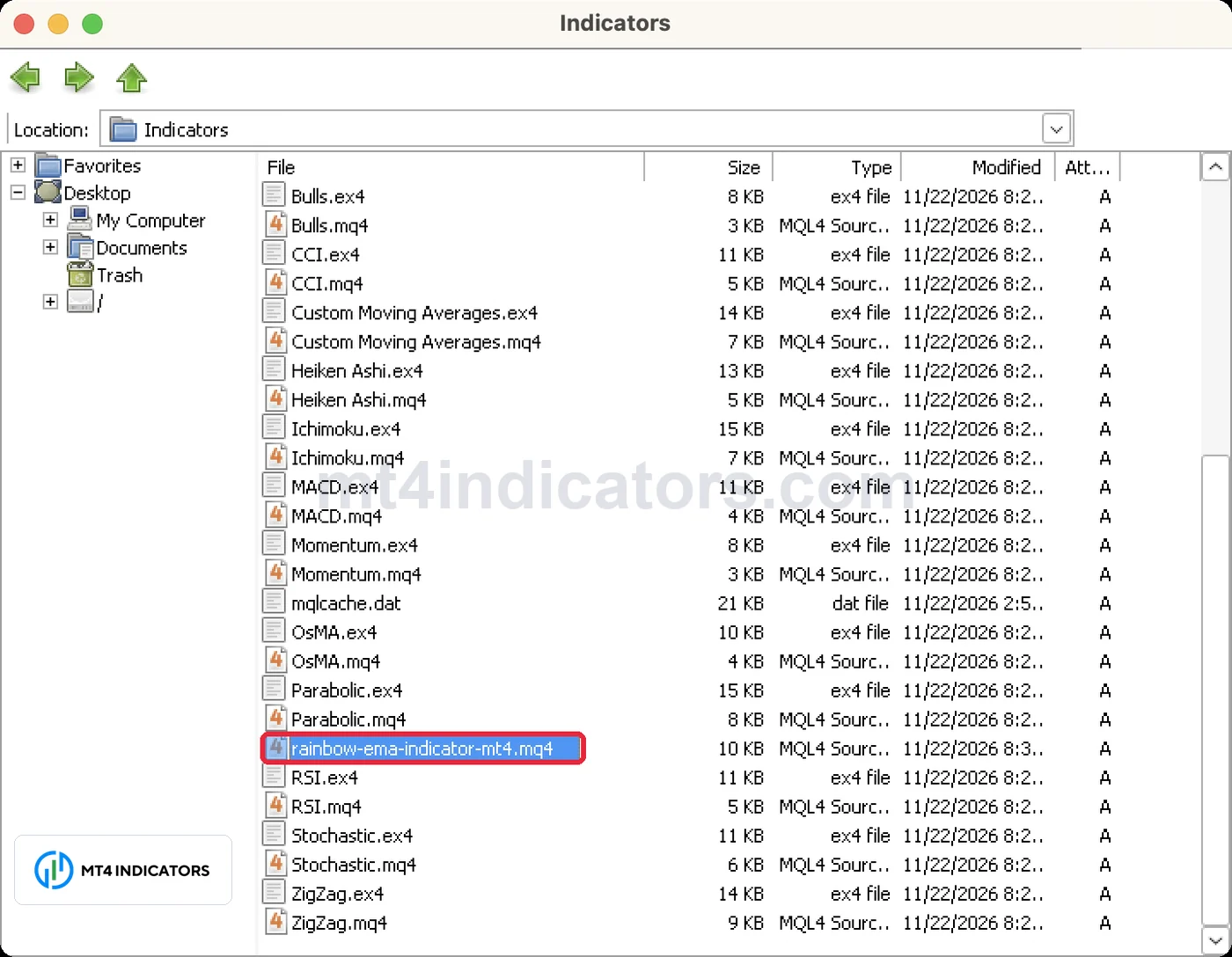
The indicator file (here rainbow-ema-indicator-mt4.mq4) pasted into MQL4 > Indicators. - Refresh the Navigator. Back in MT4, open the Navigator (View > Navigator or Ctrl+N), right-click Indicators and choose Refresh. Restarting MT4 does the same job.
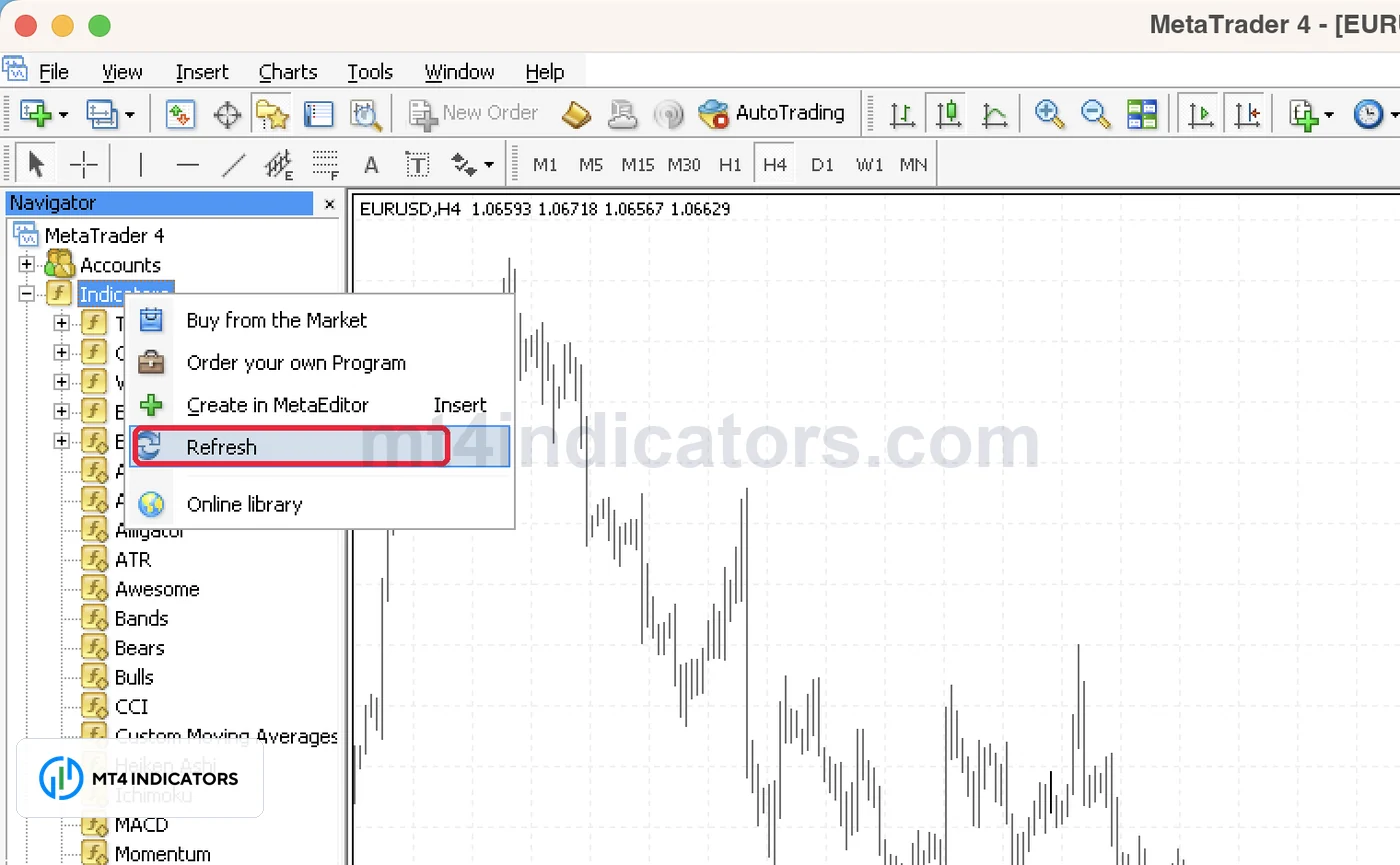
Right-click Indicators in the Navigator and choose Refresh. - Find the indicator. Expand Indicators in the Navigator. Your custom indicators are listed there by file name. You can also reach them from the menu with Insert > Indicators > Custom.
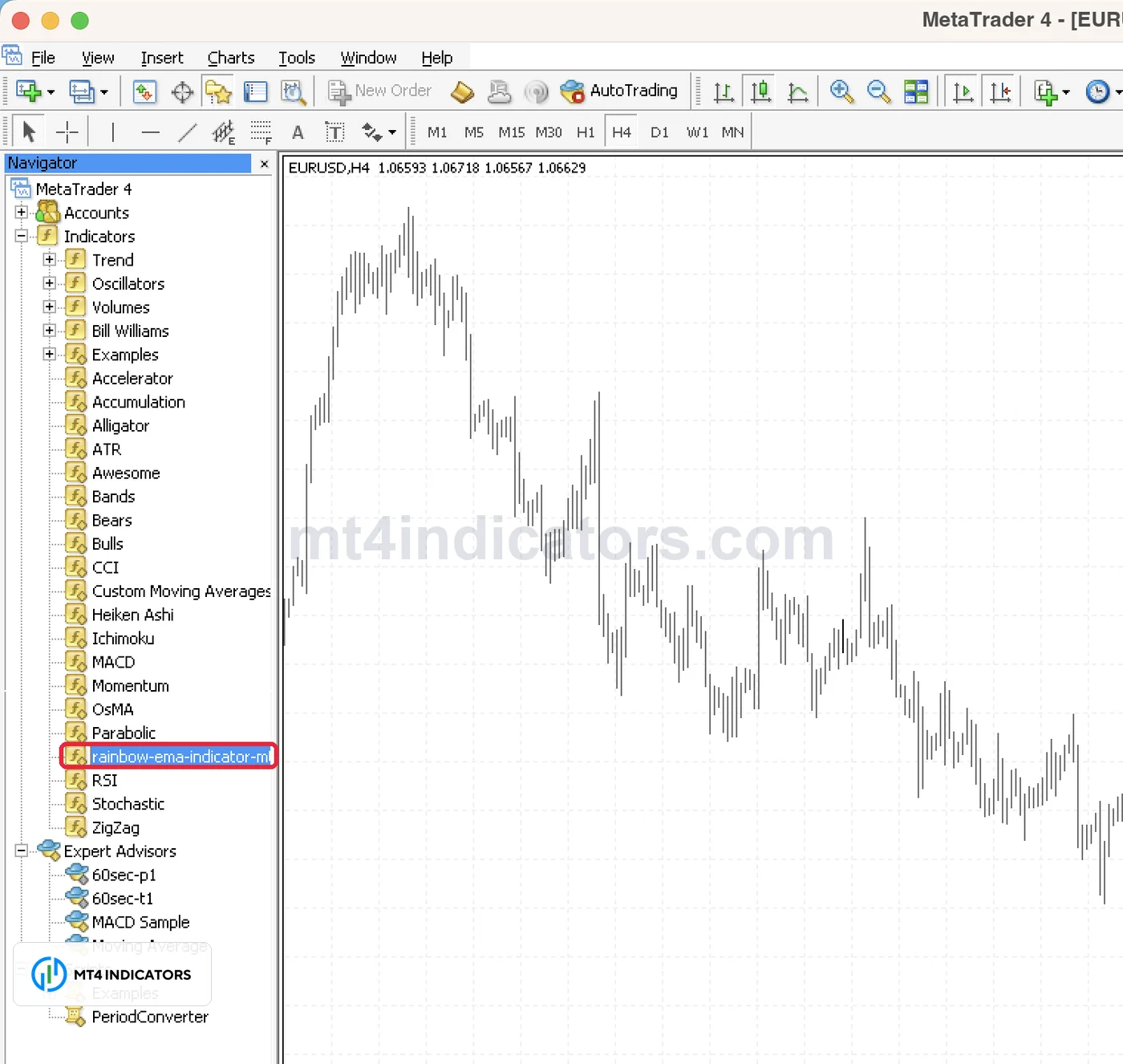
After the refresh, the new indicator appears in the Navigator list. - Attach it to a chart. Drag the indicator onto a chart, or double-click it while the chart is active.
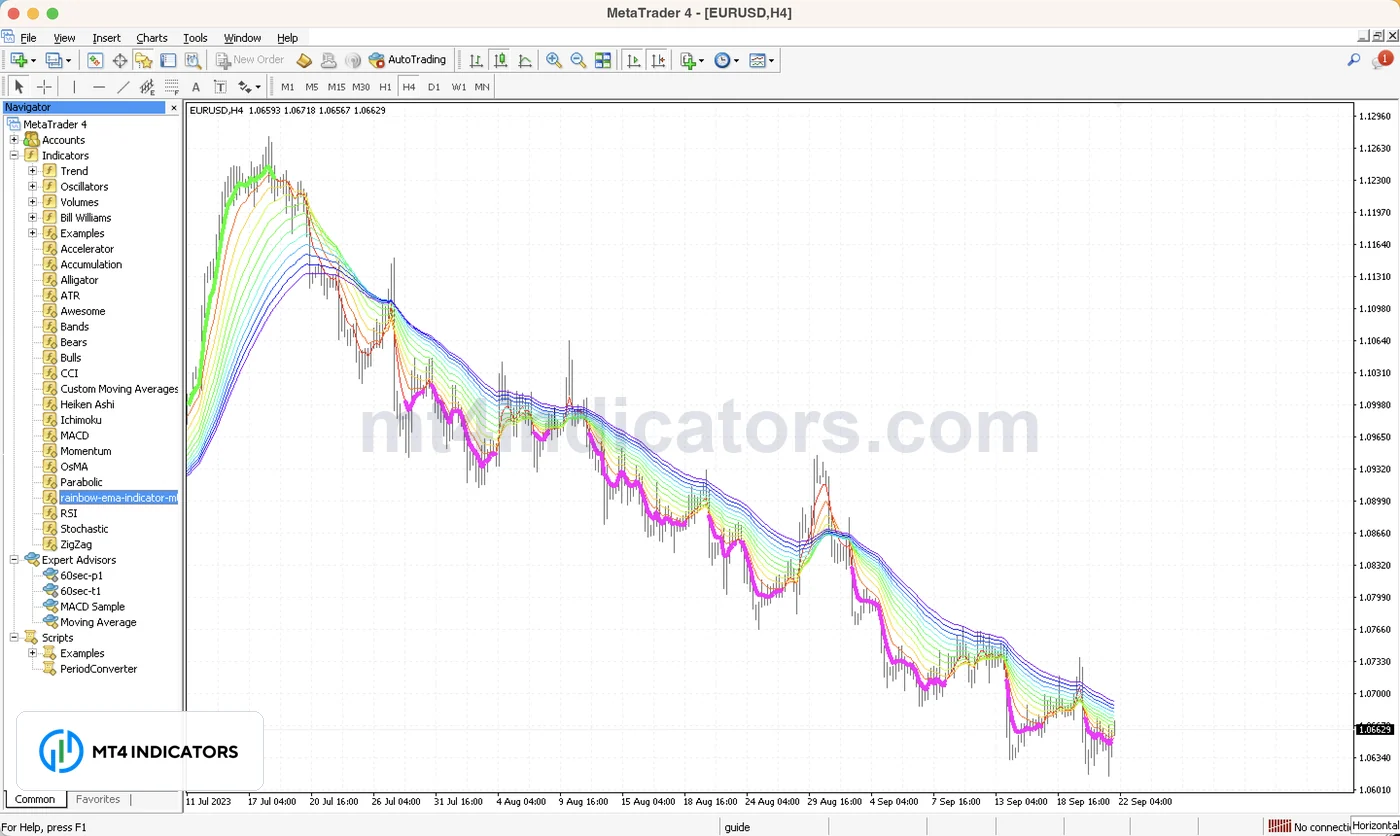
Why use File > Open Data Folder instead of browsing to the MT4 install folder yourself? Since build 600, MT4 usually keeps its MQL4 folder in your user profile, not in Program Files. Files copied into the install folder are often ignored. The menu command always opens the right place for the terminal you are using.
Setting the Inputs Tab
When you attach an indicator, a properties window opens. The Inputs tab lists the settings the author exposed, such as periods, levels and alert switches. Double-click a value to change it. The Colors tab sets line colors and widths, and the Levels tab adds horizontal reference lines in a separate indicator window.
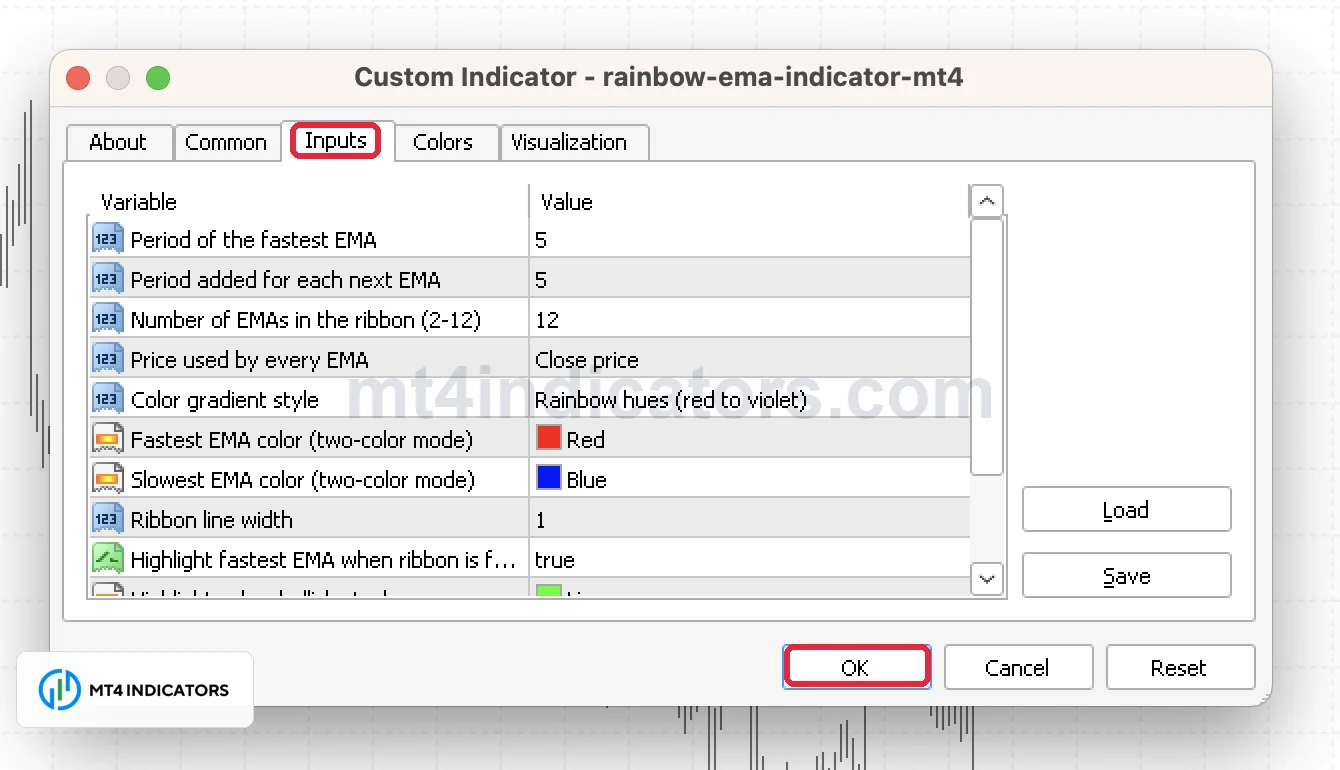
To change settings later, right-click the chart, choose Indicators List (Ctrl+I), select the indicator and click Edit. Each download page on this site lists every input with its default value, so you can check what a setting does before you change it. The Supply and Demand indicator is a good example, with its zone and alert inputs explained one by one.
Allow DLL Imports Only When an Indicator Needs It
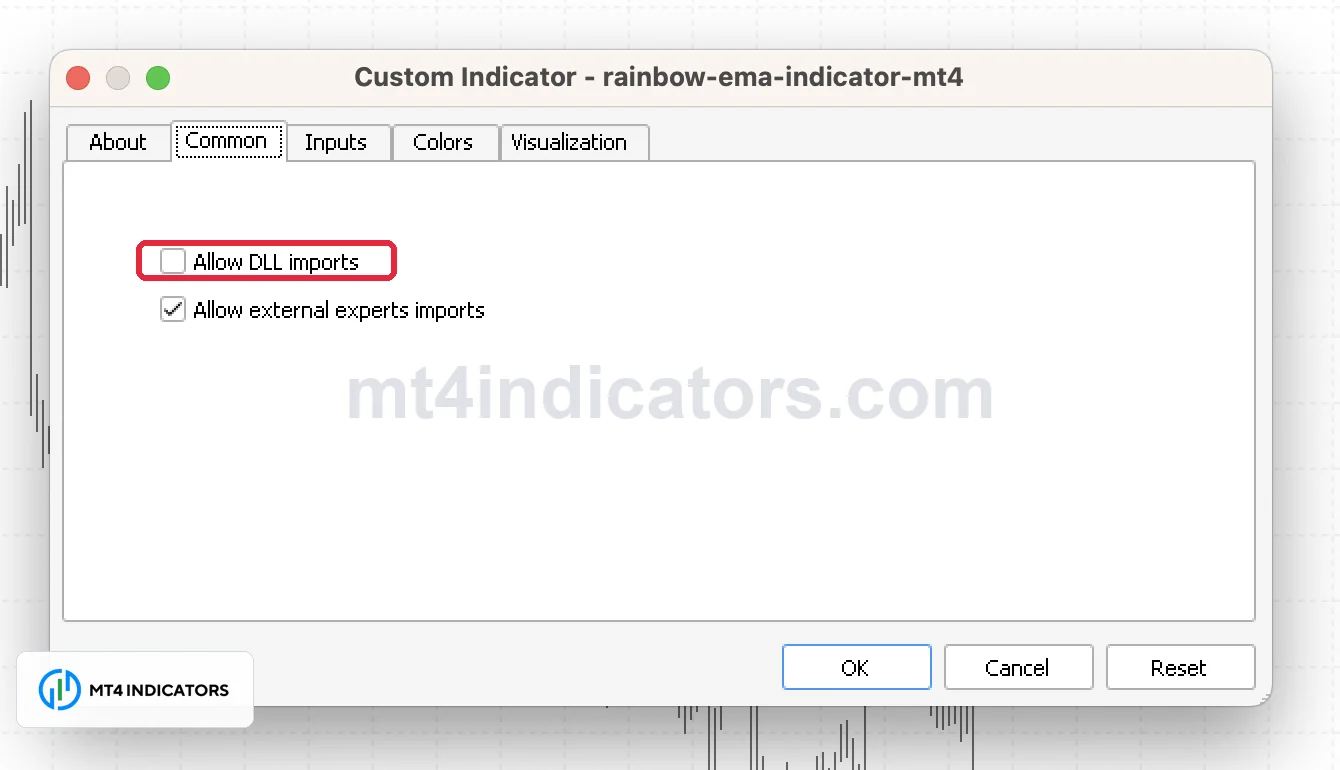
The Common tab has an Allow DLL imports checkbox. A DLL is an external Windows library that an indicator can call outside of MT4. Most indicators do not use DLLs, and you should leave this off unless the indicator’s documentation says it needs one. A DLL can run any code on your computer, so only allow it for files from a source you trust. The same setting exists globally under Tools > Options > Expert Advisors.
How to Install an MT4 Template (.tpl)
A template saves a chart’s look and the indicators on it, with their settings. Some downloads include one so you can load a full setup in one click.
- Go to File > Open Data Folder and open the templates folder (it sits in the data folder itself, not inside MQL4).
- Copy the .tpl file there.
- Install every indicator the template uses in MQL4 > Indicators. A template only stores references to indicators, not the indicators themselves.
- On a chart, right-click and choose Template, then pick the template from the list, or use Load Template to browse to it.
If the template loads but some indicators are missing, the template is pointing to indicator files that are not in your Indicators folder, or that have a different file name.
Installing Indicators in MT5: What Changes
The MT5 process is the same idea with different folder and file names:
- Use File > Open Data Folder > MQL5 > Indicators.
- MT5 indicators use .mq5 (source) and .ex5 (compiled) files.
- Refresh the Navigator or restart MT5, then drag the indicator onto a chart.
- MT5 templates live in MQL5 > Profiles > Templates.
The important point: MT4 files do not run on MT5, and MT5 files do not run on MT4. An .ex4 placed in an MT5 folder is simply ignored, and the same goes for an .ex5 in MT4. You need a version written for the platform you use. The free MT5 indicators section lists the MetaTrader 5 builds, and our MT4 vs MT5 comparison explains why the two are not cross-compatible.
Where an indicator exists for both platforms, the MT4 page links to the MT5 version. For example, the Camarilla Pivots indicator for MT4 links to the Camarilla Pivot Points indicator for MT5.
Can You Install Custom Indicators on the MT4 Mobile App?
No. The MT4 apps for iPhone and Android cannot run custom indicators or Expert Advisors. They come with 30 built-in indicators, and there is no folder to copy files into. If you want a custom indicator’s signals on your phone, run it on a desktop terminal or a VPS and send push notifications to the app. Our guide to MT4 mobile indicators covers the built-in list and the workarounds.
Troubleshooting: MT4 Indicator Not Showing or Not Working
Most problems come down to the wrong folder, a file that has not been compiled, or an error the indicator hits at run time. Open the Terminal panel (View > Terminal or Ctrl+T) and check the Experts and Journal tabs first. The Experts tab shows messages and run-time errors from indicators and Expert Advisors. The Journal tab shows terminal events, including files that failed to load.
| Problem | Likely cause | Fix |
|---|---|---|
| Indicator does not appear in the Navigator | File is in the wrong folder, or the Navigator has not been refreshed | Use File > Open Data Folder > MQL4 > Indicators, then right-click Indicators > Refresh or restart MT4 |
| Download still shows as a .zip | The archive was never extracted | Extract the zip and copy the .mq4/.ex4 file itself, not the archive or the folder around it |
| A .mq4 file is in the folder but no indicator appears | The source failed to compile | Open it in MetaEditor (F4), press Compile (F7) and read the Errors tab in MetaEditor’s Toolbox |
| Indicator is attached but draws nothing | A run-time error, a missing helper file, or not enough chart history | Check the Experts tab for errors such as “array out of range” or “cannot load”, install any second file the indicator calls, and scroll back to load more bars |
| You copied the file but your MT4 still cannot see it | You have more than one MT4 installed, or MT4 runs in portable mode, so it uses a different data folder | Always open the folder from File > Open Data Folder inside the terminal you are using; in portable mode that is the install folder itself |
| Old .ex4 file will not load | It was compiled by a very old MT4 build (before build 600) | Use the .mq4 source and compile it in current MetaEditor, or get an updated version |
| .ex5 or .mq5 file ignored | It is an MT5 file | Get the MT4 version, or install it in MT5 under MQL5 > Indicators |
| “Trading not allowed” or a sad-face icon on the chart | That message belongs to Expert Advisors, not indicators; the file is an EA | Put EAs in MQL4 > Experts, enable the AutoTrading button and tick “Allow live trading” in the EA’s Common tab. Indicators cannot place trades |
| Indicator asks for DLL access | It calls an external library | Allow DLL imports in the Common tab only if you trust the source |
Check Repaint Status Before You Rely on Signals
Once an indicator runs, check how it behaves on closed bars. Some indicators redraw past signals as new prices arrive, which makes them look better on history than they perform live. Our guide to repainting indicators explains how to test for it, and indicator pages on this site state a repaint verdict based on a reading of the source code.
Next Steps
With one indicator installed, the rest are identical: same folder, same refresh, same drag onto the chart. A good place to start is our list of the best MT4 indicators, grouped by the job each one does. Test any new indicator on a demo account before using it with real money. Trading on margin carries a high level of risk, and indicators are analysis tools that cannot predict the next move.
Frequently asked questions
How do I add a custom indicator to MT4?
Click File > Open Data Folder, open MQL4 > Indicators and copy the .mq4 or .ex4 file there. Right-click Indicators in the Navigator and choose Refresh, or restart MT4. The indicator then appears in the Navigator's Indicators list, ready to drag onto a chart.
Why is my indicator not showing in MT4?
The usual causes are copying the file into the wrong folder, forgetting to refresh the Navigator, or leaving the file inside a zip archive. A .mq4 file that fails to compile also will not load; open it in MetaEditor and press F7 to see the errors. Check the Experts and Journal tabs in the Terminal panel for messages.
What is the difference between .mq4 and .ex4?
A .mq4 file is the readable source code, and an .ex4 file is the compiled program MT4 runs. MT4 compiles a .mq4 into an .ex4 when the terminal starts or when you refresh the Indicators list. You can edit a .mq4 in MetaEditor, but an .ex4 cannot be edited.
Can I install custom indicators on the MT4 Android or iPhone app?
No. The MT4 mobile apps only run their 30 built-in indicators and cannot load custom indicators or Expert Advisors. To get a custom indicator's signals on your phone, run it on a desktop terminal or VPS and enable push notifications to your MetaQuotes ID.
Do MT4 indicators work in MT5?
No. MT4 uses MQL4 (.mq4/.ex4) and MT5 uses MQL5 (.mq5/.ex5), and neither platform runs the other's files. You need a version written for MT5, which goes in File > Open Data Folder > MQL5 > Indicators.
Should I enable Allow DLL imports?
Only if the indicator's documentation says it needs a DLL and you trust where the file came from. A DLL is external code that runs outside MT4's sandbox. Most indicators do not need it, so leave the box unticked by default.